I’ve used Canva for four years. Business cards, Instagram stories, pitch decks, the occasional birthday invite — it handles all of that without any drama. When people ask me what design tool to use, I still say Canva. It’s genuinely good at what it does.
But three months ago, my workflow changed. I started producing AI-generated content at volume — product images, short videos, style variations, multilingual social posts — and I realized something: Canva is a design tool. What I needed was a workflow tool. Specifically, I needed something that lets me chain multiple AI models into a single pipeline. Generate an image with GPT Image 2, upscale it, swap in a different face, turn the result into a 5-second video, add a voiceover. One pipeline. One click.
Canva can’t do that. It wasn’t built for that. And that’s fine — it’s still my go-to for designing a carousel from a template. But for AI creation workflows, I ended up somewhere I didn’t expect: a node-based canvas.
Where Canva Stops and the Real Work Begins
I don’t want this to be a hit piece on Canva. It’s a $40B company for a reason. For template-based design — picking a layout, swapping in your brand colors, exporting a PNG — there’s nothing faster. Canva’s AI features have gotten better too. Magic Write does decent copy suggestions. The AI image generator works for simple stuff. Background remover is solid.
But here’s what happened. A client asked me to produce 40 product shots: same product, different backgrounds, three aspect ratios each, with text overlays in English and Japanese. Plus short video clips from the best-performing stills. That’s roughly 120 images and 15 videos.
In Canva, each of those is a manual operation. Generate one image. Download it. Upload to another tool for upscaling. Upload again for translation. Open a different tool for video. There’s no way to say: “take this prompt, run it through GPT Image 2, upscale the result to 4K, then feed it into Kling 3.0 for a 5-second clip, and do that 40 times.”
That’s not a Canva limitation — it’s a category difference. Canva arranges assets on a page. What I needed was something that arranges AI models into a pipeline.
Honest take: If your work is “pick a template, customize it, export” — stick with Canva. It’s better at that than anything else. This post is about a different kind of work: multi-model AI generation at scale, where you need to chain models together and run them repeatedly.
What a Node-Based Canvas Actually Means
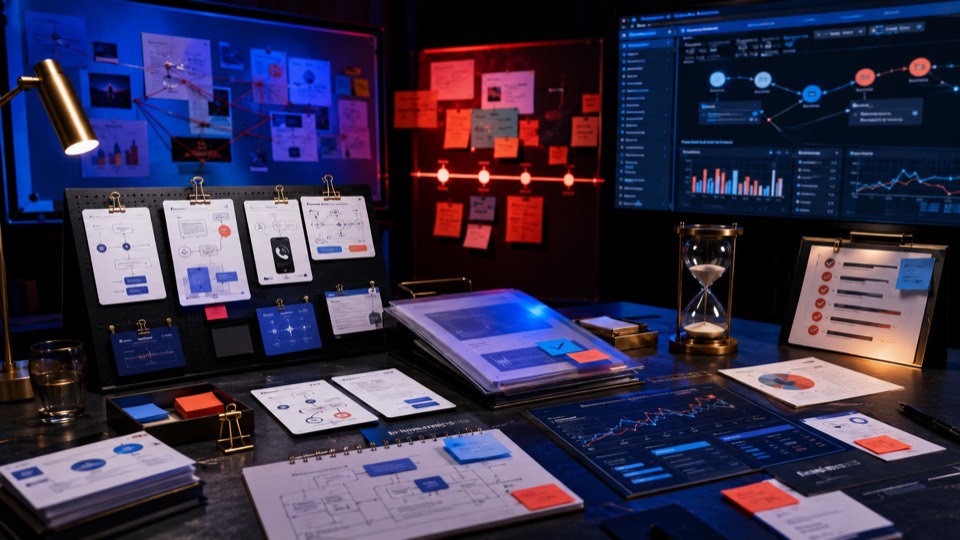
If you’ve never used a node-based editor before, the concept is simple. Imagine each AI model as a box. Each box has inputs (what goes in) and outputs (what comes out). You connect the output of one box to the input of the next. That chain of boxes is your workflow.
A basic example:
- Text Prompt node — you type “a ceramic coffee mug on a marble countertop, morning light” — takes the prompt, generates an image.
- Editor node — takes the image, takes the prompt changes into account.
- Saves the final result.
That’s two nodes, connected left to right. Once you build it, you can re-run it with different prompts. Or you can branch: send the same image to both an upscaler and a video model simultaneously. Or you can add conditions: if the image passes a quality check, proceed to video; if not, regenerate.

If you’ve ever used Shortcuts on iPhone, Zapier, or even the formula bar in a spreadsheet — you already understand the mental model. Each node does one thing. You connect them to build something more complex. The difference is that here, the nodes are AI models.
People who’ve used ComfyUI will recognize this pattern immediately. The concept isn’t new. What’s new is being able to do it in the browser, with commercial-grade models, without installing anything.
A2E Canvas: What It Is and How It Works
A2E Canvas is a visual workflow editor. You open it in your browser. You get an infinite canvas — grid lines, the whole vibe. On the left is a panel with every AI model A2E offers. You drag a model onto the canvas, it becomes a node. You drag a wire from one node’s output to another node’s input. That’s your workflow.
This is where it gets interesting compared to both Canva and ComfyUI. A2E Canvas doesn’t just have one or two image generators. It plugs into the full A2E model roster.
Everything runs in A2E’s cloud. You just drag, connect, and run.
Building a workflow
Walk through a real example. I needed to create a social campaign for a skincare brand: product photos in three styles, each with a 5-second video loop and a voiceover.
Here’s what I built on the canvas:
- Text to Image — product description + style instructions, takes the prompt changes into account
- Image to Video — turns the still into a 5-second
- Video Merge — combines the video
Three nodes. One canvas. I changed the prompt three times for three styles, hit “Run” three times. Got 3 product photos, 3 video loops, and 3 branded clips. Total time: about 12 minutes. In a Canva + separate tools workflow, the same job took me most of an afternoon last month.

Saving and sharing workflows
Once you build a workflow, you save it. Next time you need the same pipeline, you load it, swap the prompt, and run.
Canva vs A2E Canvas — Side by Side
Since people are going to search “Canva vs” anyway, here’s an honest comparison. These tools have genuinely different purposes, but the overlap is real — both deal with visual content creation, and both now involve AI.
| Feature | A2E Canvas | Canva |
|---|---|---|
| Core concept | Node-based AI workflow builder | Template-based design editor |
| AI models available | 20+ (image, video, audio, character) | Canva’s built-in AI only |
| Multi-model chaining | Connect any models in sequence | Not supported |
| Template library | No templates (workflow-based) | 250,000+ templates |
| Static design (posters, decks) | Not its purpose | Best in class |
| Batch generation | Run workflow N times with different inputs | Manual per-asset |
| Image-to-video pipeline | Built-in (multiple video models) | Basic video editing only |
| Face/head/cloth swap | Dedicated nodes | Not available |
| Reusable workflows | Save, share | Templates serve a similar role |
| Learning curve | Moderate (node concepts) | Very low |
| Collaboration | N/A | Real-time team editing |
| Runs in browser | Yes, no install | Yes, no install |
Honest summary: If you’re designing a flyer and need to pick a font — use Canva. If you’re generating 50 AI images, converting the best ones to video with branded audio, and need to do this every week — use a node-based canvas.
Some people will use both. I still open Canva when I need to lay out a presentation or design a social graphic from scratch. But the moment my task involves “generate with model A, then process with model B, then convert with model C” — that’s A2E Canvas territory.
Who Should Care About This
A2E Canvas isn’t for everyone. It’s for people whose work has outgrown single-tool workflows.
Content teams producing AI visuals at volume
If you’re generating 20+ AI images a week across multiple formats and platforms, doing each one manually in ChatGPT or Midjourney is painful. A saved workflow that takes a prompt and outputs four formats in one click — that’s an operational upgrade.
E-commerce teams running product content
Product photo → lifestyle scene → video → social assets. That pipeline repeats for every SKU. Building it once as a reusable workflow means your intern can run it, not just your senior designer.
Freelancers juggling multiple AI tools
If your current workflow is: generate in tool A, download, upload to tool B, download, upload to tool C — that’s exactly the friction a node-based canvas eliminates. Everything stays in one workspace.
Canva power users hitting a ceiling
If you’ve been pushing Canva’s AI features and keep running into the credit limits (200/month on Pro), the lack of model choice, or the absence of chaining capabilities — you already know the feeling. A2E Canvas is the tool for that next step.
ComfyUI users who want commercial models
If you love the node-based paradigm but want GPT Image 2, Kling 3.0, or Seedance 2.0 in your pipeline without dealing with API wrappers — Canvas gives you that in a browser.
A2E Canvas is live. Build multi-model AI workflows in your browser — no GPU, no code, no setup.